Choose a publication to begin
STATE OF FLUX GLOBAL SRM RESEARCH
State of Flux research
Free access · business email confirmationWe ask for your name, business email, company and role. Detailed engagement analytics, including pointer behaviour and Reader search terms, are optional and can be declined before opening the book.
STATE OF FLUX RESEARCH & PUBLICATIONS
Explore our publications
Select a publication to see its digital edition. You can register or sign in after choosing what you want to read.

STATE OF FLUX CHRISTMASSame North Pole. More to explore.
Loading publications…
STATE OF FLUX DIGITAL PUBLICATIONS
Research and proposals that behave like digital products.
A State of Flux-owned reader for annual SRM books and client proposals, with verified access, measurable engagement and direct journeys into relevant State of Flux services.

PUBLICATIONS
Research library & client proposals

MY STATE OF FLUX LIBRARY
Your research, proposals and insights in one place.
Return to publications with your notes, sticky notes and bookmarks intact, see private client material while it is available, and discover recommendations based on what you have actually spent time reading.
Sign in from a State of Flux publication first
Once your business email has been confirmed, My library becomes available on this device/browser.
Browse publications★ FAVOURITES
Your favourite publications
Star a publication anywhere in My Library and it will stay at the top of your library.
CONTINUE READING
Your reading history
NEW FROM STATE OF FLUX
New publications
PRIVATE TO YOU
Proposals & presentations
SUGGESTED FOR YOU
Based on your reading profile
FROM YOUR STATE OF FLUX CONSULTANT
Selected for your library
YOUR SRM OUTPUTS
Business case, Voice of the Supplier & SRM Index
Loading page…
PagesPage 1
FIRST-PARTY READER INTELLIGENCE
Publication analytics
Move between an all-reader publication view and the same detailed view for one named reader.
Readers0identified or session-based
Sessions0reader visits
Pages read / reached0distinct pages with Reader activity
Active reading0minactive time excluded
Links clicked0Reader CTAs and journeys
Searches0when detailed analytics is allowed
Annotations0content remains private
PAGE PERFORMANCE
Active attention by page
All readers combined.
ATTENTION MAP
Pointer heatmap
Page views0
Active time0m
Link clicks0
Searches0
Heatmaps show a behavioural attention proxy from pointer movement. They are not eye tracking and only contain pointer data where detailed analytics was enabled.
LINK ACTIVITY
Links clicked
See which Reader CTAs and linked journeys attracted attention.
No link clicks yet.
SEARCH INTENT
Consent-basedSearch terms
Terms entered into the Reader search when the reader allowed detailed engagement analytics.
No search activity yet.
ANNOTATION ACTIVITY
Private text never shownWhere readers annotate
See where readers add private notes, sticky notes and emoji reactions without exposing what they wrote.
Annotations0
Pages annotated0
Readers annotating0
Private notes0
Sticky notes0
Emoji0
Showing all readers
What Analytics can seeAnnotation type, page and position only. Note and sticky-note text remains private to the reader.
Private noteSticky noteEmoji
ANNOTATION ACTIVITY BY PAGENAMED READER ACTIVITY
Who has opened it
Select a reader to open the same page, heatmap, search, link and annotation analysis at individual level.
| Reader | Company / role | Verified | Sessions | Pages | Furthest | Active | Links | Searches | Annotations | Analyse | Last activity |
|---|---|---|---|---|---|---|---|---|---|---|---|
| No named reader activity yet. | |||||||||||
MARKETING
Marketing workspace
The most-used publishing tasks are first. Open a section only when you need the more detailed Reader, content or media controls.
MARKETING HOW-TO CENTRENeed help doing something in the Reader?Open practical step-by-step guides for the tasks Marketing uses most. Each guide links straight to the relevant tool and your progress is saved against your Microsoft employee identity.
QUICK ACTIONSWhat do you want to do?Jump straight to the tasks Marketing uses most.
MOST USEDPublish & manage website publicationsUpload, approve, preview and connect publications to the State of Flux website.
EXISTING PUBLICATIONS
Manage publications already in the Reader
Select any previously uploaded website publication. You can change its publishing status, update landing/Reader settings, add or replace CTAs, glossary terms and other digital layers without uploading the PDF again.
Select publicationChoose a publication to manage
PAGE CTAs0clickable areas
SIDE-PANEL CTAs0reader journeys
GLOSSARY0defined terms
DIGITAL LAYERS0interactive items
Publishing status
No website publications have been uploaded yet. Use Upload publication to add the first one.
PUBLISHING APPROVAL
Approval status & audit trail
Website PDFs stay private until a Marketing approver publishes them. Every approval, rejection, unpublish and republish action is recorded against the authenticated Microsoft employee.
SQUARESPACE / WEBSITE
Website publishing & reader integration
Publish a State of Flux research card or hero in Squarespace, then hand the visitor into the branded reader on reports.stateofflux.co.uk.
Opens the exact visitor journey in a new tab
PUBLIC EXPERIENCESee exactly what a website visitor will seeLanding page → details capture → email confirmation → reader
LOCAL TEST URL
Use this while testing locally. The production handoff uses the State of Flux reports subdomain.
PRODUCTION READER URL
Canonical public structure: www.stateofflux.co.uk → reports.stateofflux.co.uk/publication/…
SQUARESPACE LAUNCH COMPONENTS
Make the website handoff feel native
Use the hero for the main annual report page, or the card inside Reports & Publications. Both open the reader in the same tab on the State of Flux reports subdomain.
STATEOFFLUX.CO.UK PREVIEW
Paste this into a Squarespace Code Block. It uses only scoped HTML/CSS and links to the production reader; no external JavaScript is required.
1State of Flux websiteResearch page or campaign CTA
→
2Reader sign-inName, email, company and role
→
3Email confirmationRequired before access
→
4Digital publicationReader tools set below
Upload a research publication to generate a website reader link.
FREQUENTClient content catalogueRegister articles, case studies, webinars, videos, podcasts and white papers for client libraries.
CLIENT LIBRARY CONTENT
Articles, blogs, case studies, videos & podcasts
Register content that is already published by State of Flux so consultants can add it to individual client libraries. This does not republish the source item.
READER EXPERIENCEReader themes, navigation, glossary, CTAs & digital layersControl client backgrounds, glossary highlights, contents, links, clickable areas, interactive media and audio.
READER THEME LIBRARY
Marketing controlledControl which backgrounds clients can use
Switch built-in themes on or off, choose the organisation-wide default background, set availability windows, or add a campaign background for a season, launch or new publication.
AvailabilityOnly enabled themes inside their availability window appear in the client Reader. The default is used for readers who have not chosen their own background. Existing personal choices remain in place while that theme is available.
GLOSSARY OVERLAY
Click-to-explainHighlight terminology and explain it in the Reader
Because the publication PDF remains unchanged, draw a transparent highlight over the word or phrase. Readers can click it to open the definition.
Glossary term
VISUAL CTA EDITOR
Page 1Draw the clickable area on the page
Drag over the page to define where the digital advert or link should sit.
Explore SRM training
How to use it
- Choose a publication and page above.
- Drag across the exact advert or button area.
- Check the destination URL and label.
- Click Add digital CTA.
LIVE DIGITAL LAYERS
Current CTAs
PUBLICATION NAVIGATION
Reader navigationContents & chapters
Use the authored PDF outline when available, then add or adjust chapter starts here. Chapters drive the Reader contents menu and can also control contextual State of Flux CTAs.
CURRENT CONTENTS
INTERACTIVE PAGE LAYERS
Video, product/service panels, forms & full-page CTAs
Add digital interactions over the PDF without modifying the master. Full-page CTA makes the whole page clickable, ideal for updating older adverts.
AUDIO
Narration & background tracks
Add optional publication-wide ambience, narration or page-specific audio. Reader playback remains user-controlled.
HOW-TO GUIDES & TEAM TRAININGMarketing how-to centreStep-by-step guides for publishing, website integration, client content, Reader enhancements, analytics and launch checks.
STATE OF FLUX READER · MARKETING HOW-TO CENTRE
Find the task. Follow the steps. Do it in the Reader.
This is designed as an on-the-job guide, not a classroom course. Search for what you need, follow the numbered steps and use the Open this tool buttons to move directly into the live Marketing controls.
0%0 of 8 guides completed
Not started
MOST USEDJump to a how-to guide8 guides
1How to find the right place to workKnow which area to use before you upload, publish, curate or test content.Not complete
Use this guide whenYou are not sure whether a task belongs in Library, Marketing, Consulting, Reader, Publications or My Library.
Staff workspace→Choose the correct area→Open the live tool
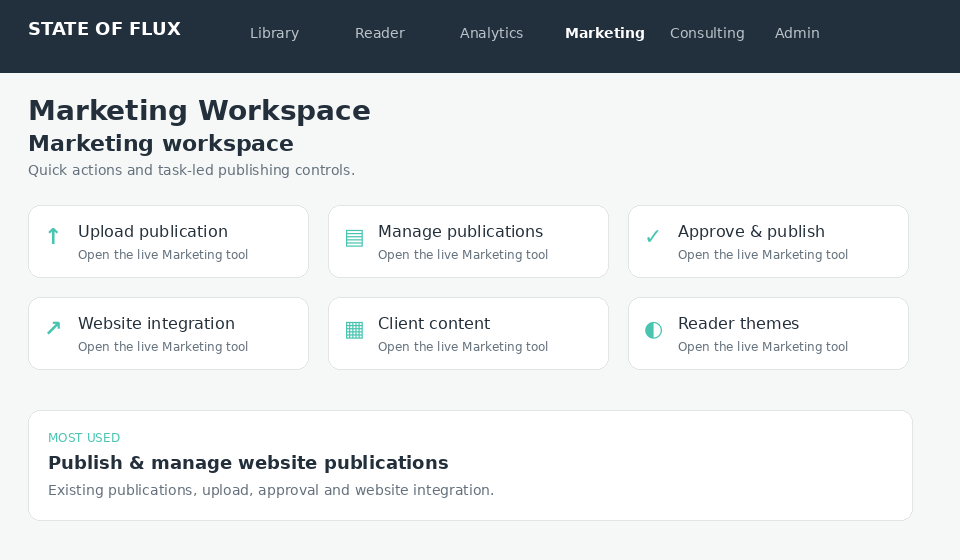
- Use Libraryto find uploaded State of Flux publications and open them in the internal Reader.
- Use Marketingto upload public reports, approve/publish, control website integration, client content and the organisation-wide Reader theme/background library. Marketing also manages glossary, CTAs and media for website publications.
- Use Consultingfor private proposals, presentations and consulting packs. Consulting has its own Reader experience area for glossary, CTAs, contents, interactive layers and audio, but backgrounds remain Marketing-controlled. Private documents can never become public website publications.
- Use Publicationsto test the public Reader catalogue containing approved Reader publications.
- Use My Libraryto test the client/reader experience, including reading history and client-assigned content.
ImportantPublic Reader and employee administration are deliberately separate. External State of Flux website links open in a new tab so the Reader stays open.
2How to upload, approve and publish a reportThe complete public-publication workflow, from the final PDF to a live Reader publication.Not complete
Before you startHave the final approved PDF, publication title, year and theme. Never use this workflow for a client-confidential proposal.
Marketing→Publish & manage→Upload publication
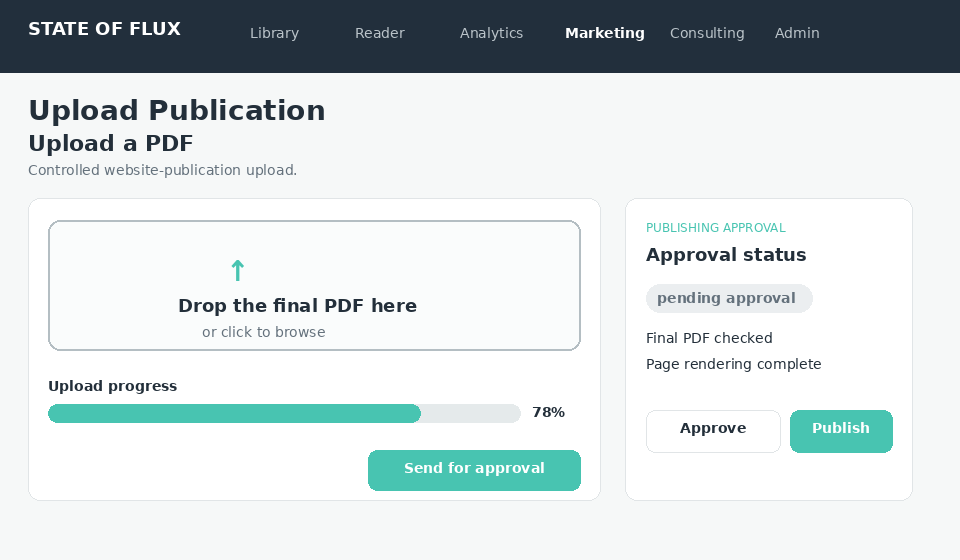
- Drop or select the PDF.Watch the upload progress percentage reach 100%. Do not close the browser during upload.
- Review the PDF inspection.Check the detected cover, page count and filename before moving on.
- Complete the publication details.Confirm title, year, theme and any suggested contents/chapter information.
- Confirm the public-publication gate.You must explicitly confirm that the PDF is approved for the State of Flux website.
- Submit it to the approval queue.Uploading does not make the report public.
- Approve and publish.Use Approval status & audit trail. The publication becomes public only after the Marketing publish action.
- Open the cover from Publications.Confirm it opens directly in the Reader and the cover fits correctly on first load.
Common mistakePutting proposals into the Book area. If it is client confidential, stop and upload it through Consulting instead.
3How to change an existing publication laterManage a report that is already uploaded without replacing or re-uploading the PDF.Not complete
Use this guide whena publication already exists in the Reader and you need to unpublish/republish it, change Reader settings, update landing copy, add CTAs, glossary terms or digital layers.
Marketing→Publish & manage→Existing publications
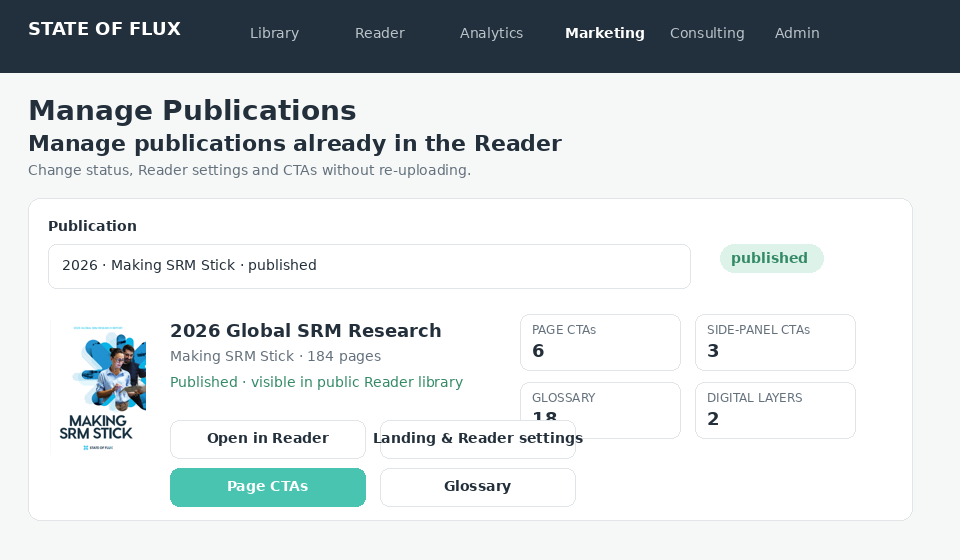
- Select the publication.The manager includes published, approved, rejected and pending website publications.
- Review the current state.Check visibility, approval history and the counts for page CTAs, side-panel CTAs, glossary terms and digital layers.
- Change publishing status if required.Approve, publish, unpublish, reject or republish from the same record. The action is added to the audit trail.
- Use the task buttons.Open Landing & Reader settings, Page CTAs, Side-panel CTAs or Glossary. The selected publication is carried into that tool automatically.
- Test the result.Open the publication in the internal Reader. If it is published, also test the public website journey before sharing it.
No re-upload requiredThe master PDF stays in place. These controls change publication state and digital Reader layers around it.
4How to put a Reader publication on the State of Flux websiteConnect Squarespace to the approved publication without moving Reader logic into the website.Not complete
OutcomeA website visitor clicks the State of Flux publication card and moves into the correct publication landing page and Reader journey.
Approved publication→Website integration→Squarespace→Test journey
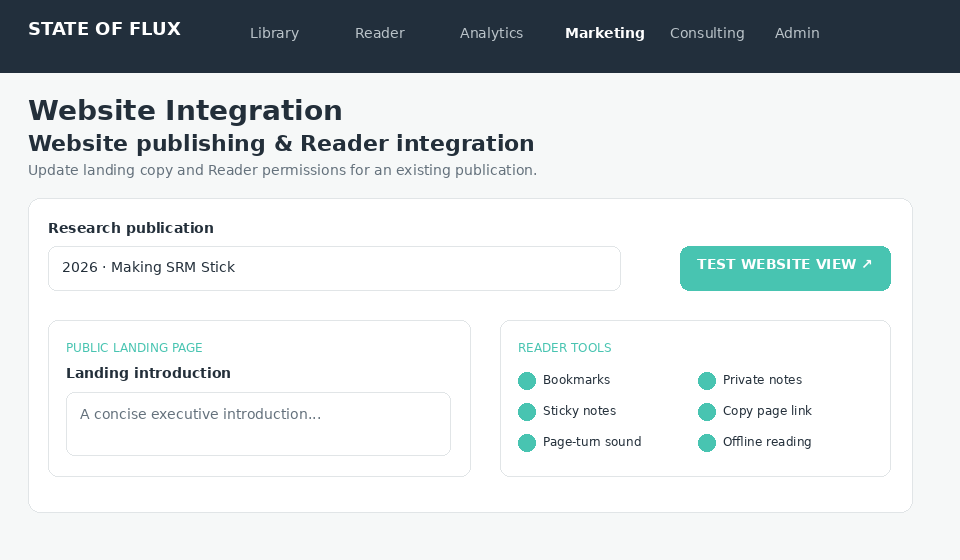
- Select the approved publicationin Website integration. Only published Book-area content should be available.
- Preview the generated Hero or Card.Check title, cover and copy before copying the component.
- Copy the generated Reader handoff.Use the production
reports.stateofflux.co.ukURL supplied by the tool. - Add/update the Squarespace card or hero.Keep Squarespace as the marketing/SEO surface and the Reader as the publication application.
- Test the full journey.Website → publication landing → registration/sign-in → Reader → My Library.
Check before you finishThe link must open the intended publication, not the staff application, and any external website links from inside the Reader should open in a new tab.
5How to add content for client My LibraryRegister existing State of Flux articles, case studies, webinars, videos, podcasts and white papers.Not complete
Use this forContent already published by State of Flux that consultants may want to curate into a client’s My Library.
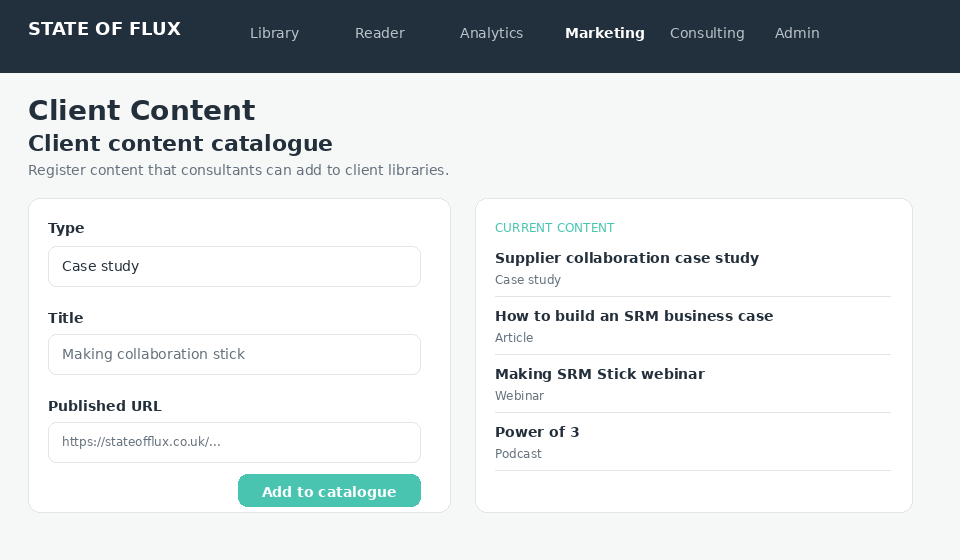
- Open Client content catalogue.Choose the correct type: article, blog, case study, webinar, video, podcast or white paper.
- Add the title and short summary.Write for the client, not for an internal file list.
- Add the published URL and image.Test the URL before saving. External content should open in a new tab from the Reader.
- Add useful topic tags.Use consistent SRM terminology so future filtering/recommendations are meaningful.
- Save and check the catalogue card.Confirm the title, image and description are readable before consultants assign it.
- Understand client favourites.Clients can star Reader publications in My Library. Starred publications appear first in their Favourites section; this is controlled by the client, not Marketing.
RememberThis catalogue does not republish the source content. It registers it so it can be surfaced in client libraries. Publication favourites are a separate reader-controlled feature.
6How to change the Reader experienceBackground themes, glossary, contents, CTAs, audio and interactive page layers.Not complete
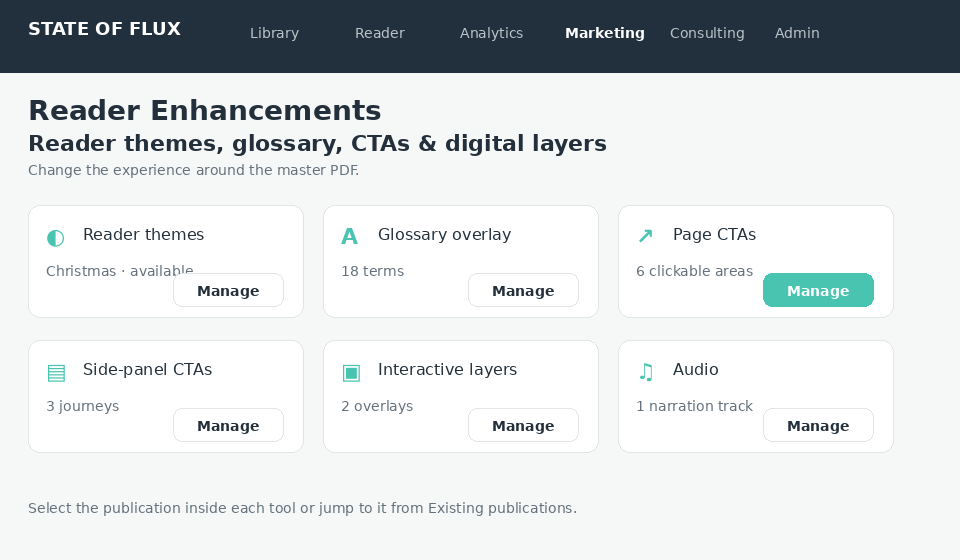
5A · Turn Reader backgrounds on or off
- Open Reader themes.Review Light, Dark, Night, the five standard State of Flux brand backgrounds (A, D, F, G and H), Christmas and any custom campaign themes.
- Use Available / Unavailable.Unavailable themes disappear from client Design & Display choices.
- Add availability dates when needed.Use this for Christmas, summer or a new-book campaign.
- Test in the client Reader.Open Design & Display and confirm only currently allowed themes appear.
5B · Add a glossary definition
- Select publication and page.Enter the term and plain-language definition.
- Drag over the word or phrase.Position the transparent glossary area over the terminology in the page preview.
- Save and test it.Open the publication as a reader and click the highlighted term.
5C · Add CTAs, video or audio
- Choose the right layer.Side-panel CTA for supporting journeys; page CTA for adverts; media for video/audio/form experiences.
- Add the destination or upload.Use approved State of Flux URLs/media and test the interaction.
- Check desktop and mobile.Ensure the layer does not hide publication content or Reader navigation.
7How to use Reader analytics safelyUnderstand engagement and annotation behaviour without reading private note or sticky-note text.Not complete
Use the same view at two levelsAll readers shows the collective behaviour for the publication. Individual reader applies the same measures to one named reader so you can compare like with like.
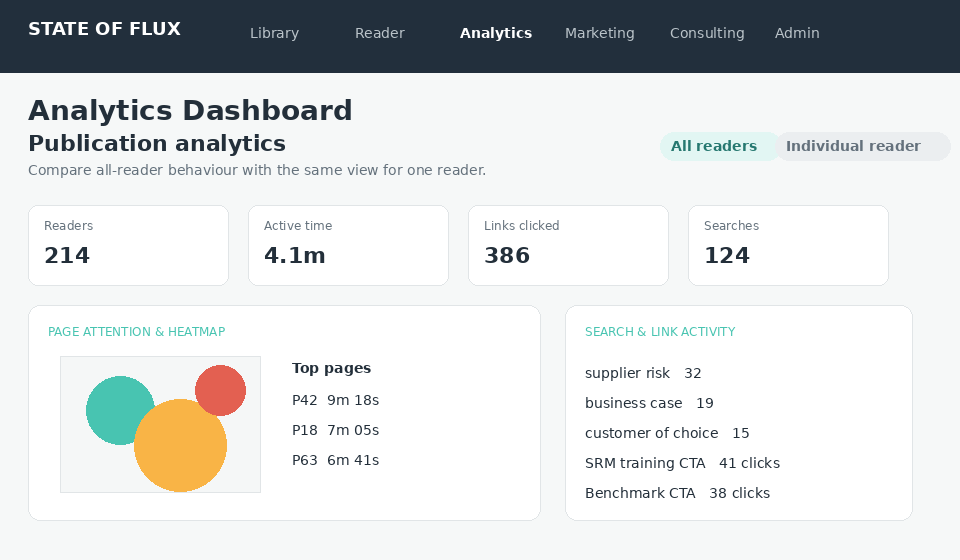
6A · Analyse the publication
- Select the publication.Keep All readers selected.
- Review reach and attention.Look at readers, sessions, pages read/reached, active time and the page-performance chart.
- Open the heatmap.Choose a page to see combined pointer attention where detailed analytics consent was provided.
- Review links and searches.See which CTAs were clicked and which Reader search terms appeared most often.
- Review annotation behaviour.Use page counts and the annotation map to see where notes, sticky notes and emoji were added.
6B · Analyse one reader
- Choose Individual reader.Select the person, or click Analyse in the named-reader table.
- Read the same dashboard again.Page bars, heatmaps, link clicks, searches and annotation activity are now filtered to that person.
- Use it for relevant follow-up.For example, identify which section of a proposal or report they spent time on before a conversation.
- Return to All readers.Compare individual behaviour with the publication-level pattern before drawing conclusions.
Privacy boundaryMarketing may see annotation type, page and position, but the analytics API never returns private note or sticky-note text. Search terms are shown only when detailed engagement analytics consent was enabled.
HubSpot is automaticWhen a new reader registers, their contact details are created or updated in HubSpot. The first time they open each new Marketing or Consulting publication, that same HubSpot contact is updated with the publication title/type and first-open date. Detailed Reader analytics and private annotations stay in the Reader, not HubSpot.
NeverTreat a heatmap as eye tracking or infer the content of a private note from its location. Use analytics as an engagement signal, not as proof of intent.
8How to run the pre-publish Reader checkA repeatable QA checklist for every report or major Reader update.Not complete
Run this checkafter a new publication, major theme/layer change, or Reader release and before Marketing shares the experience externally.
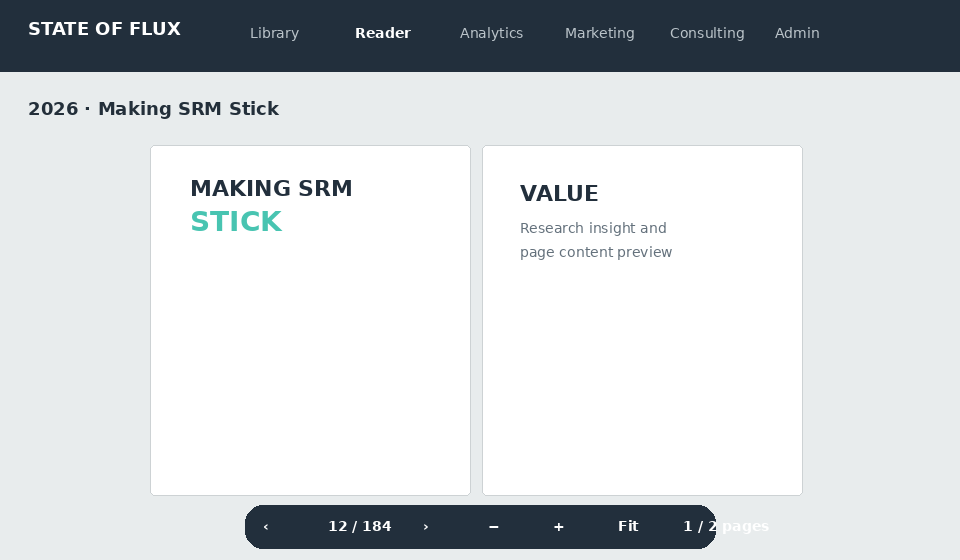
Finish byopening the publication from its cover card as if you were a reader. Do not rely only on the staff preview.
OPTIONAL KNOWLEDGE CHECK
Confirm the key rules
The how-to guides are the main training. This short check confirms the safety-critical publishing, privacy and access rules. Pass mark: 80%.
CLIENT PROPOSAL CONTROL
Secure proposal sharing
Control who can open a proposal, when the link expires and whether an old link should be withdrawn or replaced.
No proposal selected
Upload a client proposal to enable recipient-specific sharing controls.
NAMED RECIPIENTS
0 activeClient recipient list
Use Named recipient list only above to restrict access to these addresses. In production, invitations will be emailed; locally you can copy the invitation link.
CONSULTING
Private client documents
Upload proposals, presentations and consulting packs, control exactly who can read them and for how long, and manage requests for additional reviewers. Consulting documents can never be published to the public website.
CONSULTING HOW-TO CENTRENeed help preparing or sharing a private Reader?Use practical guides for private uploads, recipient delivery, Reader enhancements, analytics and final client checks. Website publication and Marketing-only controls are deliberately excluded.
MOST USEDUpload and send private client documentsUpload a proposal, presentation or consulting pack, then publish it securely to up to ten named recipients.
PUBLISH TO READER
Person-specific accessWho should receive this?
Publish this private item directly to individual Reader accounts. Existing readers are notified; new readers are invited to set up their Reader. No client organisation workspace is created.
Choose the private proposal, presentation or consulting pack you want to put into a client’s My Library.
EXISTING READERAdd to My Library + notifyIf the business email already belongs to a verified Reader account, the item appears in their library immediately and they receive a secure email notification.
NEW READERInvite to set up ReaderIf there is no verified account, we send a secure setup invitation. When they complete it, this item is already waiting in My Library.
No private documents yetUpload and save a proposal, presentation or consulting pack before publishing it to a client.
PUBLISHED TOReader recipients
Access stays tied to the individual business email.REVIEWER REQUESTS
HOW-TO GUIDES & TEAM TRAININGConsulting how-to centreStep-by-step guides for private documents, named recipients, Reader enhancements, analytics and client-ready checks.
STATE OF FLUX READER · CONSULTING HOW-TO CENTRE
Prepare it privately. Share it securely. Follow up intelligently.
These guides mirror the Marketing how-to experience but include only the tools available to Consulting. Public website publication, approval queues, Squarespace integration and background administration are excluded.
0%0 of 6 guides completed
Not started
MOST USEDJump to a how-to guide6 guides
1How to find the right Consulting toolKnow where to upload, enhance, share and review a private client document.Not complete
Use this guide whenyou are deciding whether to work in Consulting, Reader, Analytics or My Library.
Consulting workspace→Choose the private document→Open the relevant tool
- Use Consultingto upload proposals, presentations and consulting packs. These remain private by system rule.
- Use Reader experienceto add glossary terms, contents, page CTAs, side-panel actions, interactive layers and audio to the selected private document.
- Use Analyticsto review publication-level or named-reader engagement where access and consent allow it.
- Use My Libraryto test the experience from the client reader’s point of view.
Marketing boundaryMarketing controls organisation-wide Reader backgrounds and public website publications. Those controls are intentionally not duplicated in Consulting.
2How to upload a private client documentInspect the PDF, confirm the client and save it into the private Consulting area.Not complete
Use this guide whenyou have the final proposal, presentation or consulting pack ready for the client Reader.
- Open Private documents.Choose Proposal, Presentation or Consulting pack.
- Drop in the final PDF.Wait for upload, page count, cover preview and quality inspection to finish.
- Check the client and title.Correct anything inferred from the document before saving.
- Review any quality warning.Confirm the source is suitable rather than accepting unreadable pages.
- Save private document.The item is created in Consulting and cannot be promoted into the public website library.
3How to publish to named recipientsAdd up to ten people in one batch and keep access tied to each business email.Not complete
Use this guide whena private item is ready to be placed into one or more client Reader accounts.
- Select the private document.Confirm the client and title before entering any recipient data.
- Add recipients.Enter up to ten unique business email addresses, with names and roles where known.
- Set availability.Use From and Until dates when access should be time-limited.
- Choose reviewer requests.Enable this only when the client may ask for additional named reviewers.
- Publish once.Existing readers receive the item in My Library; new readers receive a secure setup invitation.
- Check the delivery summary.Resolve any failed address individually rather than resending the whole batch.
Neveruse a shared mailbox or forward a person-specific invitation. Access is bound to the intended business email.
4How to enhance a private ReaderAdd useful digital layers without changing the approved client PDF.Not complete
Use this guide whenthe client document is saved and you want to make the reading experience easier or more actionable.
- Select one private document.Every control below applies only to that active document.
- Add glossary explanations.Highlight specialist language and provide a clear definition.
- Set contents and chapters.Make a long proposal or pack easier to navigate.
- Add approved actions.Use page or side-panel CTAs for a meeting, contact route or relevant State of Flux resource.
- Add media carefully.Use interactive layers or audio only when they improve the client journey.
- Open in Reader.Test every enhancement in single-page, two-page and mobile views.
BackgroundsConsulting can use the backgrounds made available by Marketing, but cannot create, disable or set the organisation-wide default background.
5How to review client engagement responsiblyUse page, link and interaction signals without exposing private note content.Not complete
Use this guide whenyou are preparing for a follow-up conversation or assessing which parts of a private document attracted attention.
- Select the publication.Start with All readers to understand the overall pattern.
- Review reach and active time.Look for sections reached and revisited, not just raw opens.
- Review links and searches.Use these as prompts for a relevant conversation.
- Choose one reader when appropriate.Filter only where the person is authorised and the data is available.
- Respect the privacy boundary.Annotation type, page and position may be visible; private note and sticky-note text is never returned to Analytics.
Do not over-interpretHeatmaps are pointer-attention proxies, not eye tracking or proof of commercial intent.
6How to run the client-ready checkA repeatable final check before a private Reader invitation is sent.Not complete
Run this checkafter the document and digital layers are final, and before publishing to named recipients.
OPTIONAL KNOWLEDGE CHECK
Confirm the private-sharing rules
This short check covers the safety-critical boundaries for Consulting. Pass mark: 80%.
READER EXPERIENCEEnhance a private client ReaderAdd glossary explanations, navigation, CTAs, interactive layers and audio. Backgrounds remain Marketing-controlled.
READER EXPERIENCE
Consulting controlled · private documentsShape the private client Reader
Add glossary explanations, page links, contents, side-panel actions, interactive layers and audio to proposals, presentations and consulting packs. Backgrounds are not included here because Marketing controls the organisation-wide Reader theme library.
Changes here affect only the selected private document.Theme/background availability remains Marketing-controlled.
CLIENT LIBRARYCurate additional State of Flux contentAdd approved Marketing catalogue content to an individual client Reader when it supports the engagement.
CLIENT LIBRARY CURATION
Add State of Flux content for a client
Choose from the Marketing catalogue and make it visible in a specific client’s My library.
ADMINISTRATION
Employees, roles & audit
Microsoft Entra authenticates the employee. This application allow list controls whether they are an Administrator, Marketing user, Consultant, Analyst or Viewer.
EMPLOYEE ACCESS
Managed in Microsoft Entra
Employee access for this deployment is granted by assigning the State of Flux Reader application role in Microsoft Entra, and removed by unassigning it. The list opposite records who has signed in and the role their Microsoft account carries; it is not an allow list and cannot grant or revoke access.
To remove an employee, unassign their Reader application role in Entra. Their access ends at their next sign-in.
ROLE DEFINITIONS
What each profile can access
AdministratorFull system, security, roles and publishing
MarketingWebsite books, publishing, CTAs and client content catalogue
ConsultantPrivate proposals, client access and client library curation
AnalystAnalytics and research insight
ViewerInternal read-only Library and Reader
CURRENT EMPLOYEES
Employee allow list
PUBLISHING & SECURITY TRACE